AI Photo Editor

Tell your photo what to change. Upload a reference image, describe the background, object or style edit you want, and choose a model before generating.

Drag to reorder. Use the Left and Right Arrow keys when a reference is focused.
0 / 2,000
10 est.
Reference preview
1 / 2
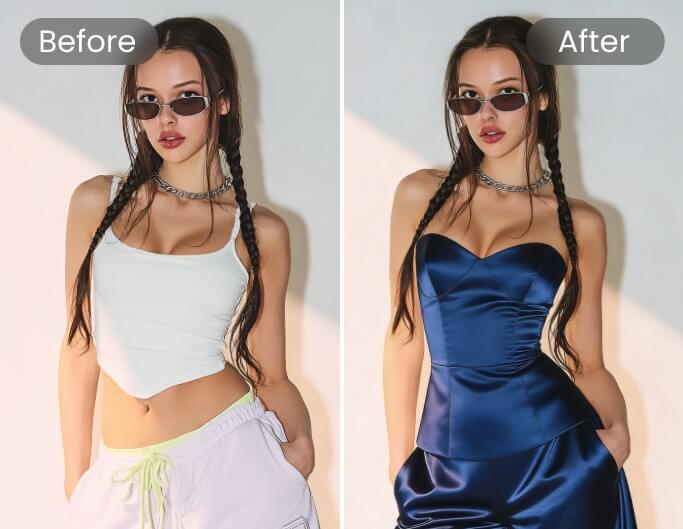
Object replacement photo editing comparison

Reference example

Visual reference, not a verified output from this tool. Results vary by model and input.

How to use the AI photo editor

Three steps from your source to a result you can review.

Photo editing transformation 26

Reference example

Visual reference, not a verified output from this tool. Results vary by model and input.
  1. 1

    Add a reference image

    Choose image editing and upload the photo you want to transform.

  2. 2

    Describe the change

    Name the background, object, lighting or style adjustment.

  3. 3

    Choose a model and generate

    Check supported settings and credits, then preview the completed edit.

Edit my photo

A closer look at AI photo editor

Tell your photo what to change. Upload a reference image, describe the background, object or style edit you want, and choose a model before generating.

Photo editing transformation 27

Reference example

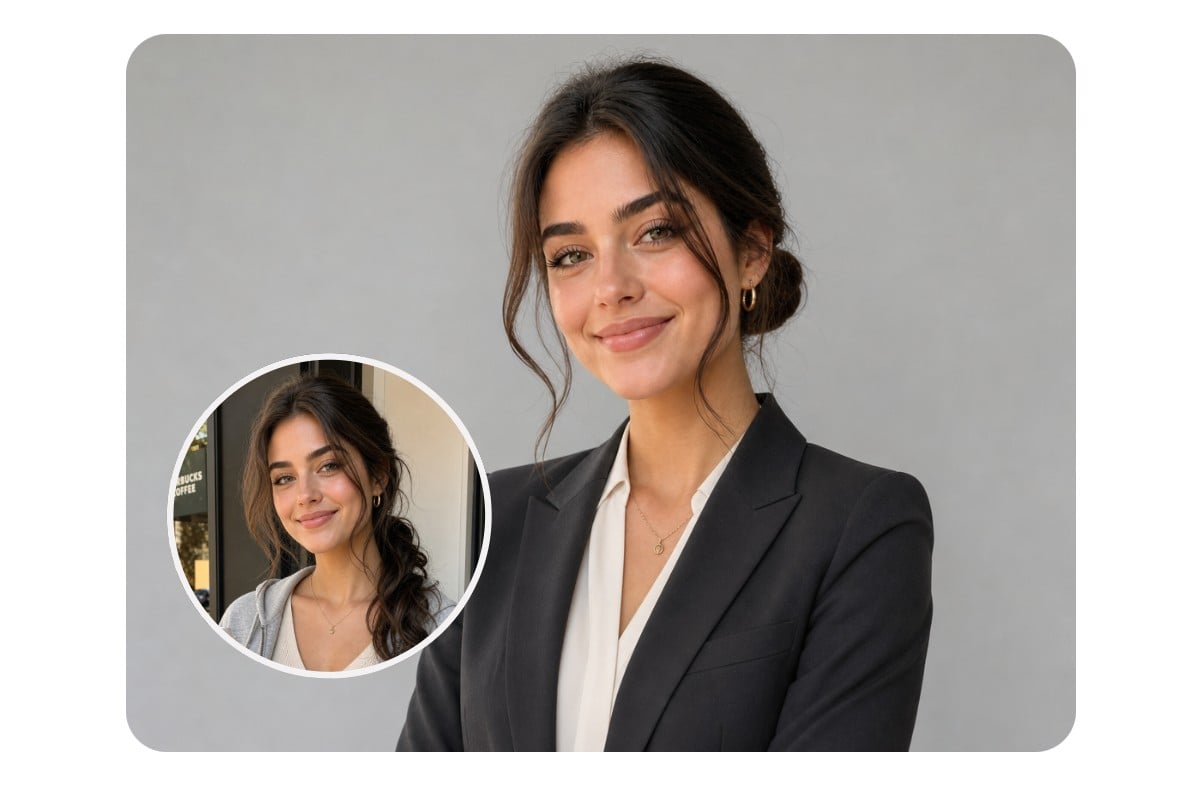
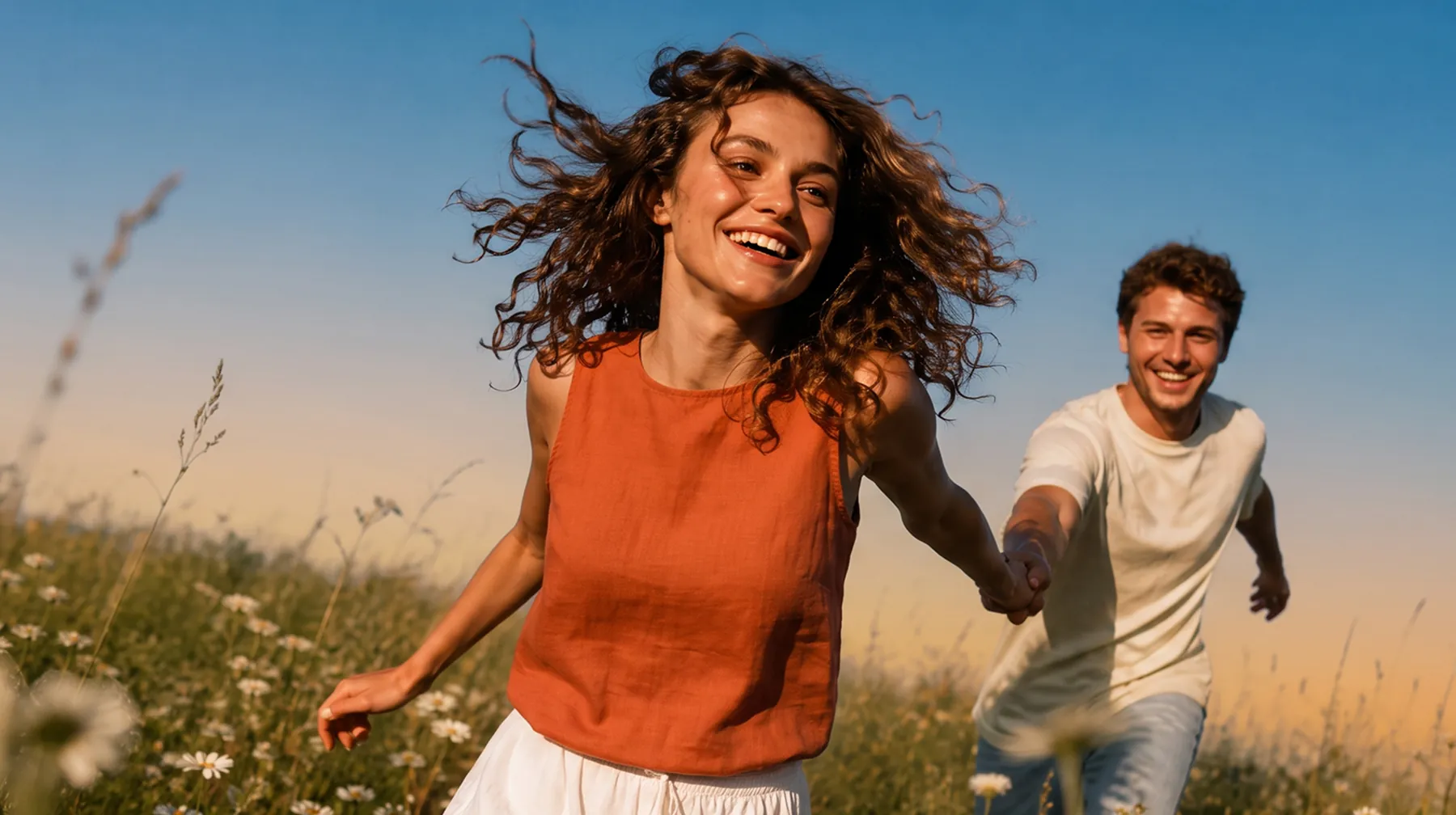
Edit photos using a text prompt

Describe what should change and what should remain the focus. Clear instructions give a reference-based edit a more useful starting point.

Edit my photo

Visual reference, not a verified output from this tool. Results vary by model and input.

Photo editing transformation 28

Reference example

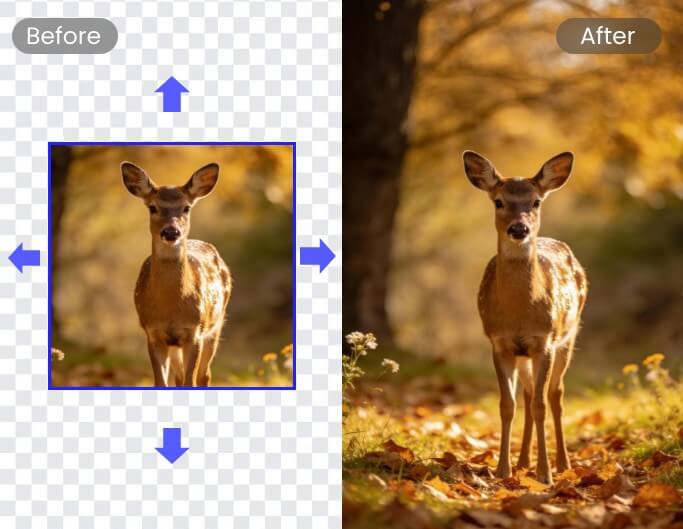
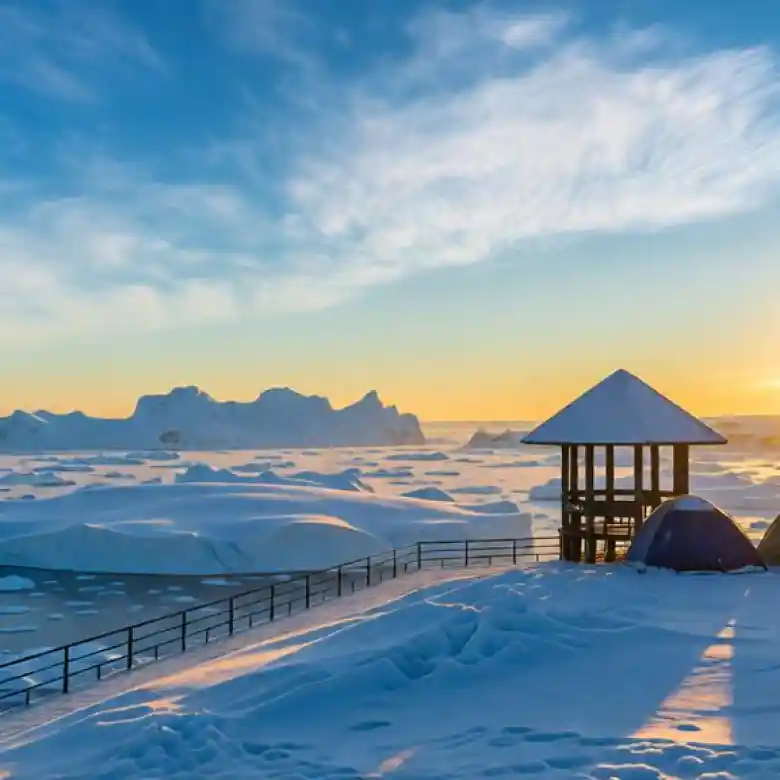
Explore a different background

Describe a studio setting, an outdoor scene or a simpler backdrop. Review subject edges and lighting after generation.

Edit my photo
Photo editing transformation 29

Reference example

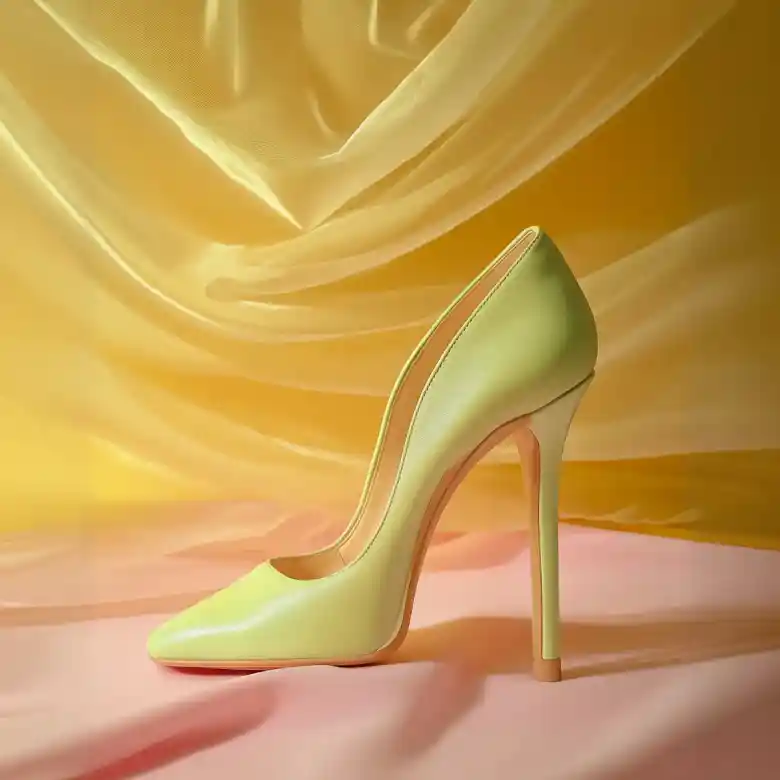
Rework objects and visual details

Ask for an object or style change in your reference. This is prompt-guided generation, so check details rather than expecting pixel-perfect retouching.

Edit my photo
Photo editing transformation 30

Reference example

Compare models before creating your edit

Choose from the available image models and supported output settings. Review the displayed credit estimate before submitting your photo edit.

Edit my photo

Make it part of your next project

Start with a clear idea and media you have permission to use.

Personal photos

Explore a new background or visual mood for a photo you already have.

Edit my photo
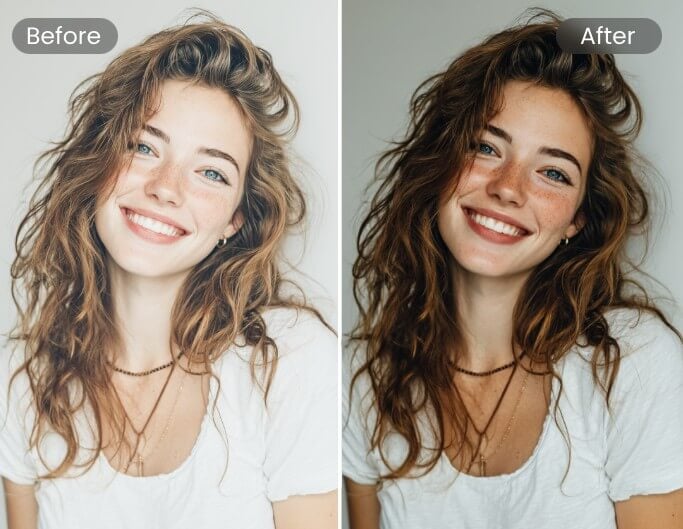
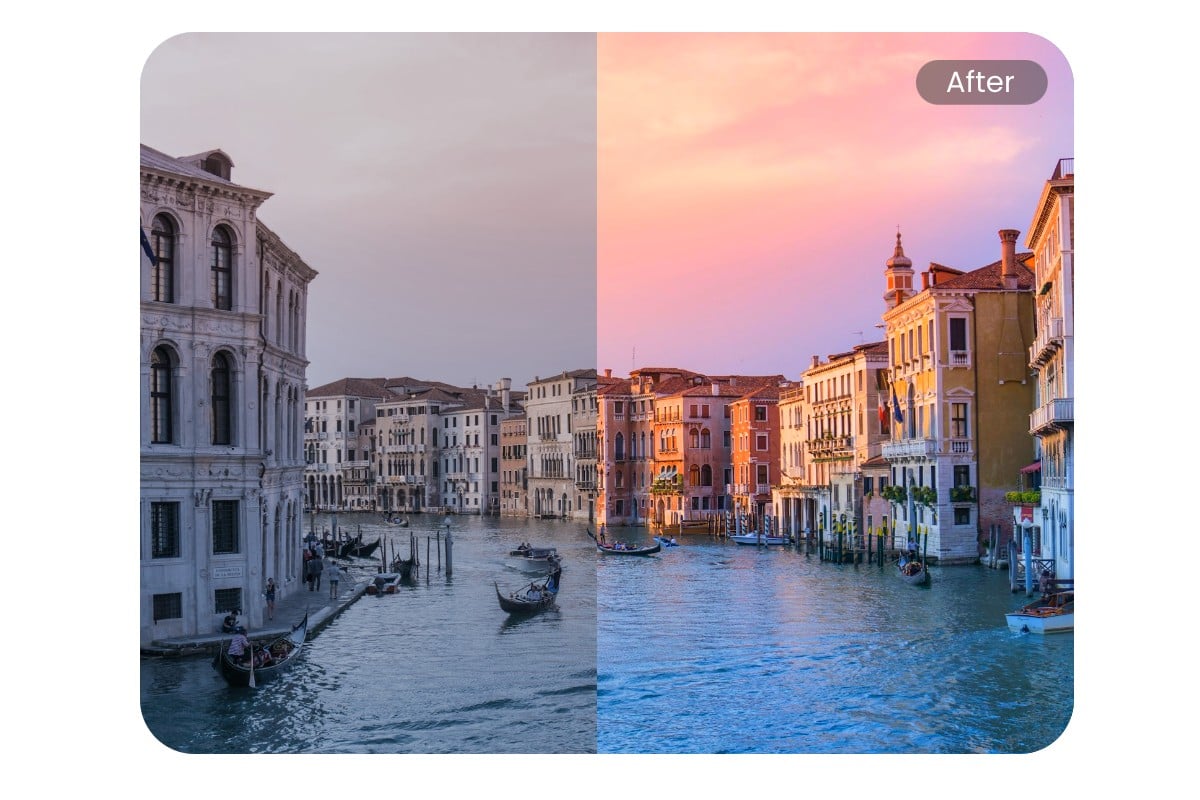
Photo lighting adjustment reference

Reference example

AI photo editor questions, answered

Practical answers about inputs, results and credits before you begin.

Contact support
Can I edit a photo using a text prompt?

Yes. Use the image editing workflow, upload a reference and describe the change. Select an available image model, review the estimate and generate the edit.

Can I change a photo background?

Describe the replacement background in your prompt. AI can also change subject edges, lighting or other details, so inspect the completed image.

Can the AI photo editor remove an object?

You can request object removal in the prompt. Results depend on the model and scene; this workflow does not provide a manual brush or guarantee exact removal.

How are photo editing credits calculated?

Credits depend on the selected image model and its output settings. The editor displays the estimate before you generate.

Can I generate an image without a reference?

Yes. Switch to text-to-image and describe a new scene. Return to image editing when you want to guide an edit with a reference photo.

Will every detail of my original be preserved?

No. Generative editing can change faces, text, logos and textures. Compare important details with your source before using the result.

Make one focused change to your photo

Upload your image and describe the background, object or style you want to change. Keep the request specific so you can judge the edit against your original.

Photo editing transformation 32Photo editing transformation 35

Visual reference, not a verified output from this tool. Results vary by model and input.